Removing a visible watermark: what to check
A faint watermark across an empty sky and a bold logo across a face are very different editing problems. Both are visible pixels, but the amount of missing detail determines how convincing the repair can be. Here is how to judge a result before using it.
What actually changes when a watermark is removed?
A flattened image does not normally contain a separate watermark layer that a tool can switch off. The mark has already been blended into the photograph. Removal software identifies an area, creates a mask and fills that area using nearby visual information.
This process is called inpainting. It estimates a plausible background; it does not reveal a hidden copy of the original photograph. A blue sky is relatively predictable. An eye, a street sign or a patterned fabric contains details that are much harder to reconstruct accurately.
Automatic detection or text detection?
Automatic watermark detection looks for regions that resemble overlaid marks. Text detection looks for lettering, regardless of whether it is a watermark. That distinction matters in street photographs: shop names and road signs may be selected alongside the unwanted overlay.
Use text detection when all detected lettering can be removed. If a photograph contains text you need to keep, inspect those areas carefully. Choosing a detection mode changes which regions are repaired, rather than making every repair more accurate.
A repeated-text example: sky, buildings and road
Our street example contains repeated “@Example” lettering across a portrait photograph. Text detection followed by background repair removes much of the lettering in the sky and road. Some fragments remain around building details, where letters overlap strong edges and textures.
Move the comparison divider across the whole image. Check repeated marks individually instead of judging only the cleaner sky. Ordinary signs may also change because the text detector does not know which words belong to the scene.
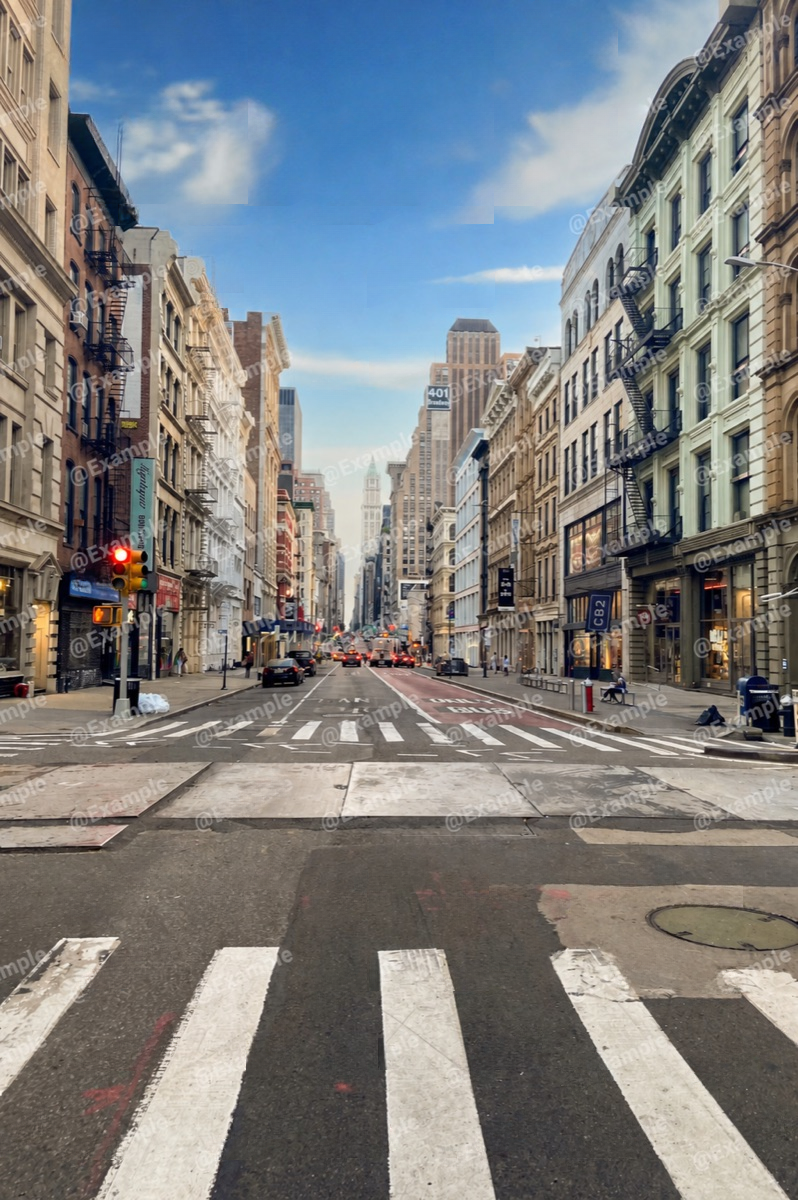
ChatGPT Watermark Remover and Dola AI Watermark Remover
People searching for a ChatGPT watermark remover or a Dola AI watermark remover can use this same workflow when the mark is visible in the image. The tool processes the picture itself; it does not identify which service created it or guarantee removal of a platform-specific mark.
Choose text detection for visible lettering, or automatic detection for other visible marks. ChatGPT or Dola labels stored as file metadata, invisible signals, and labels shown by a platform are separate from visible pixels and are not removed by this workflow. Always compare the repaired image with the original.
Check the result at full size
- Compare the same region in the original and processed image, at 100% zoom.
- Follow straight edges such as rooflines, railings and window frames. Look for bends or broken lines.
- Inspect repeated textures for smears, duplicated patches or sudden changes in sharpness.
- Check faces and meaningful text separately; plausible-looking details may still be wrong.
- Confirm the exported dimensions and open the downloaded file before finishing.
A PNG export avoids another lossy JPEG encoding step, but cannot restore detail already lost during repair. Larger file size alone is not evidence of better image quality.
Common questions
Can a watermark be removed completely?
Sometimes a repair looks clean at normal viewing size. Dense overlays or detailed backgrounds can leave visible remnants. A clean-looking area is reconstructed content, so compare it against your original requirements.
Is a ChatGPT AI label the same thing?
A visible mark is part of the picture. File metadata and platform labels are separate. If the image looks clean but carries embedded generator records, metadata cleanup addresses a different task.
When is the original file a better option?
When exact details matter, use an original unmarked export if it is available. Inpainting is more suitable when a plausible background is sufficient.